
Viewing & re-downloading exports
Every consent request that completes produces a CSV export. TaxBloc keeps every export indefinitely while the client's consent is active, so you can re-download them any time without asking the client again.
From a client's detail page
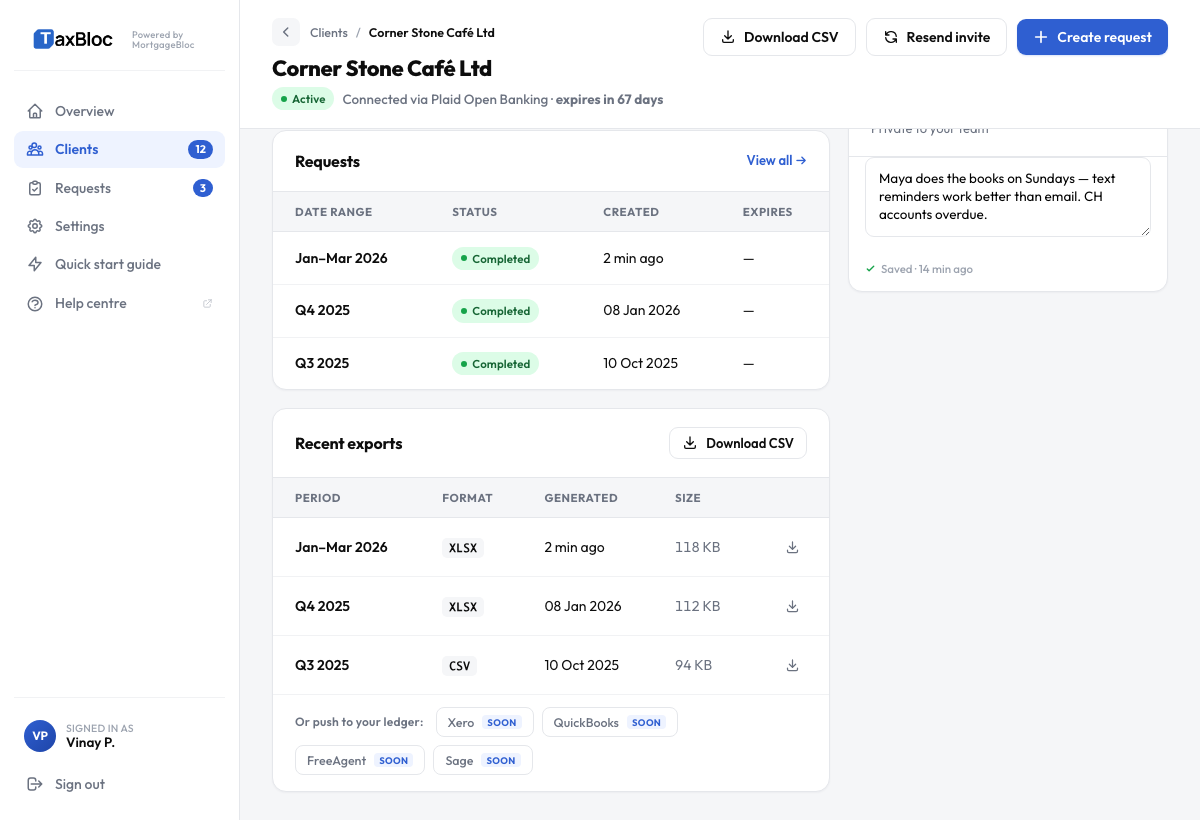
The fastest path is the per-client detail view. Open Clients, click any client, and use the Download CSV button — it sits in the topbar next to + Create request, and a second copy is on the Recent exports card (the first card in the left column). Either button starts a download immediately, named {client}-transactions-{date}.csv. Resend invite lives in the right-column Quick actions card, next to Disconnect bank.
Push to your ledger (coming Q3 2026)
Below the Recent exports table, every client now shows a row of push to ledger buttons — Xero, QuickBooks, FreeAgent and Sage. All four are flagged Soon and target Q3 2026; clicking any of them today shows a "coming Q3 2026" toast. Until they ship, CSV download is the bridge to your ledger.
From the Requests page
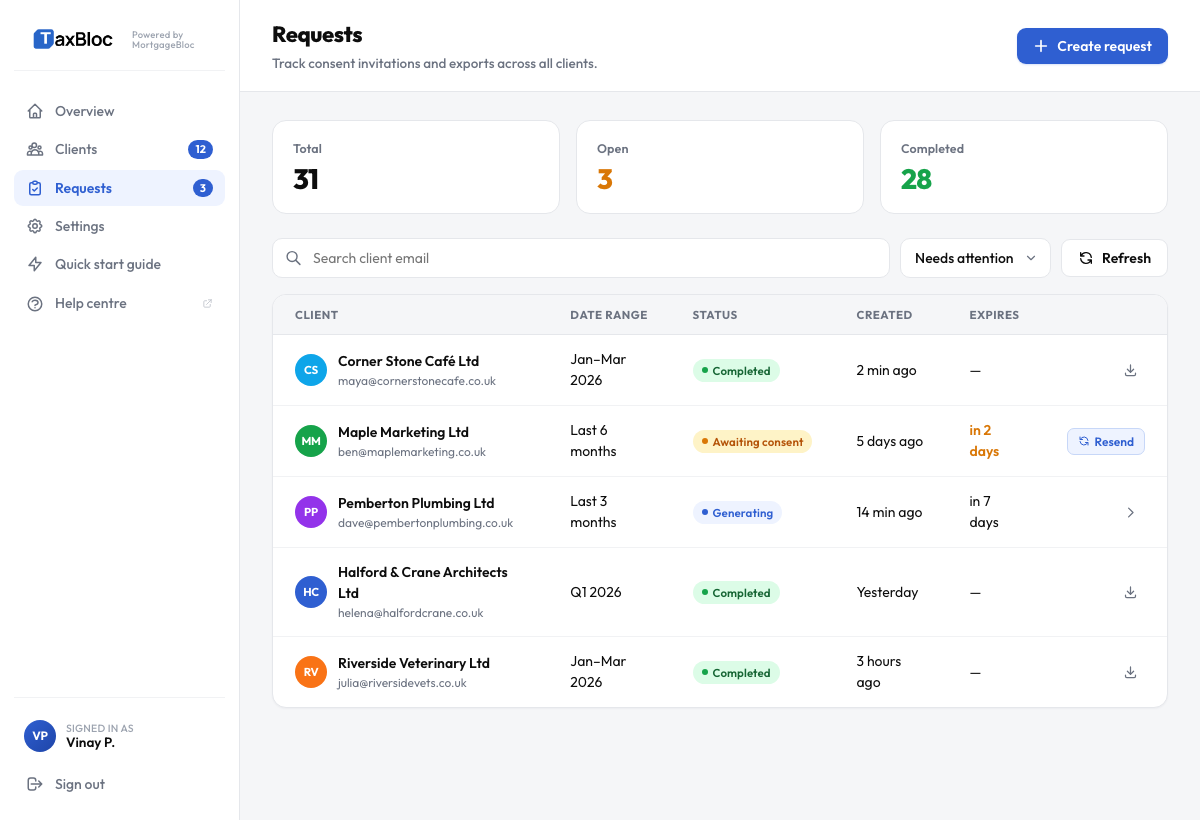
For the full export history across all clients, go to Requests in the left sidebar. Each row shows the client, the date range covered, status, and a download icon on completed rows.
Recent activity on the Overview
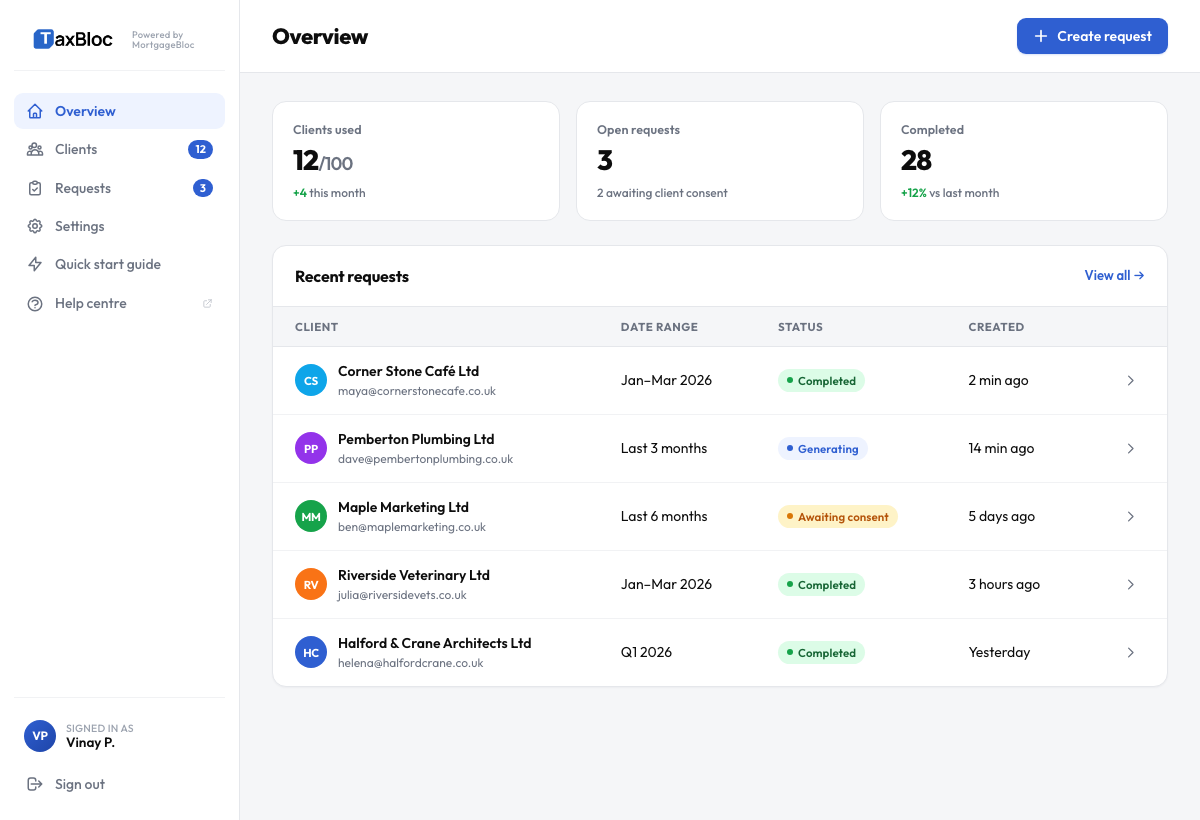
The Overview's Recent requests table surfaces the three most recent invitations and exports across all clients — useful for a quick "what changed since I last looked" glance. Click any row to open that client, or use the labelled View / Resend button on the right. View all → in the card header opens the full Requests page.
What's in the CSV
Each export is a single CSV with one row per transaction. Standard columns:
date— transaction date (ISO 8601).description— bank-provided narrative.amount_gbp— signed decimal in GBP. Negatives are debits.category— primary classification (Sales, Cost of sales, Payroll, Tax, etc).account— short label of the source account (e.g. "Business Current").reference— bank-side reference for the transaction.export_period— the date range you requested when sending consent.
Bulk download
Coming soon. A bulk-download action on the Requests page (select multiple rows → Download selected) is on the roadmap for Q3 2026, alongside the ledger integrations. For now, downloads are one-client-at-a-time.