
Adding clients
There are two ways to get clients into TaxBloc: add them one at a time as you create consent requests, or bulk-upload a list via CSV. Both flows pull live data from Companies House so you don't have to type out registered addresses or year-ends.
Add a single client
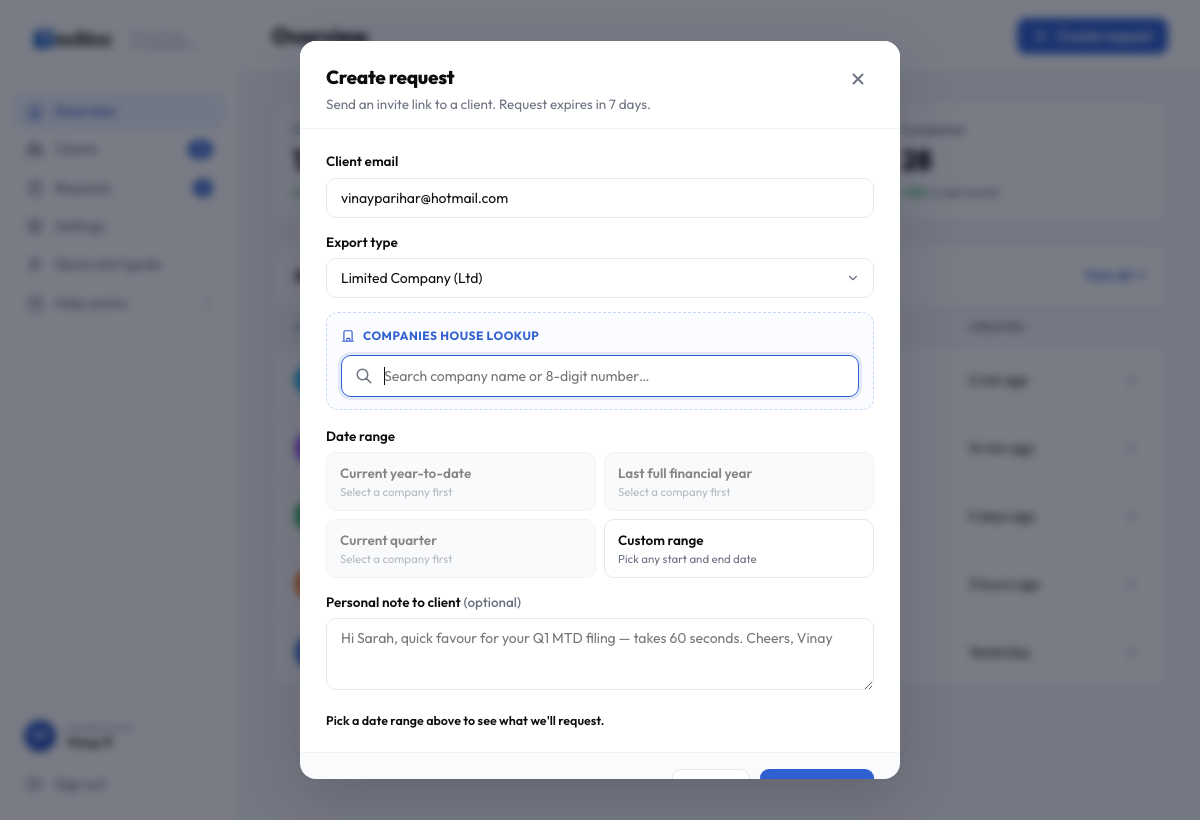
Adding one client is the same flow as creating their first consent request — there's no separate "add client" step. The client record is created the moment you click Send request.
- Click + Create request in the top-right corner of any page.
- Enter the client's email. This becomes the canonical contact for that client.
- Pick the export type — the entity classification (see entity types).
- Search Companies House by name or 8-digit number. Picking a result auto-fills the registered office, year-end and filing status.
- Send the request. The client now appears under Clients with status Awaiting consent.
Bulk import via CSV
If you're moving an existing client book into TaxBloc, the CSV import is the fastest path. You can upload up to 100 clients at once.
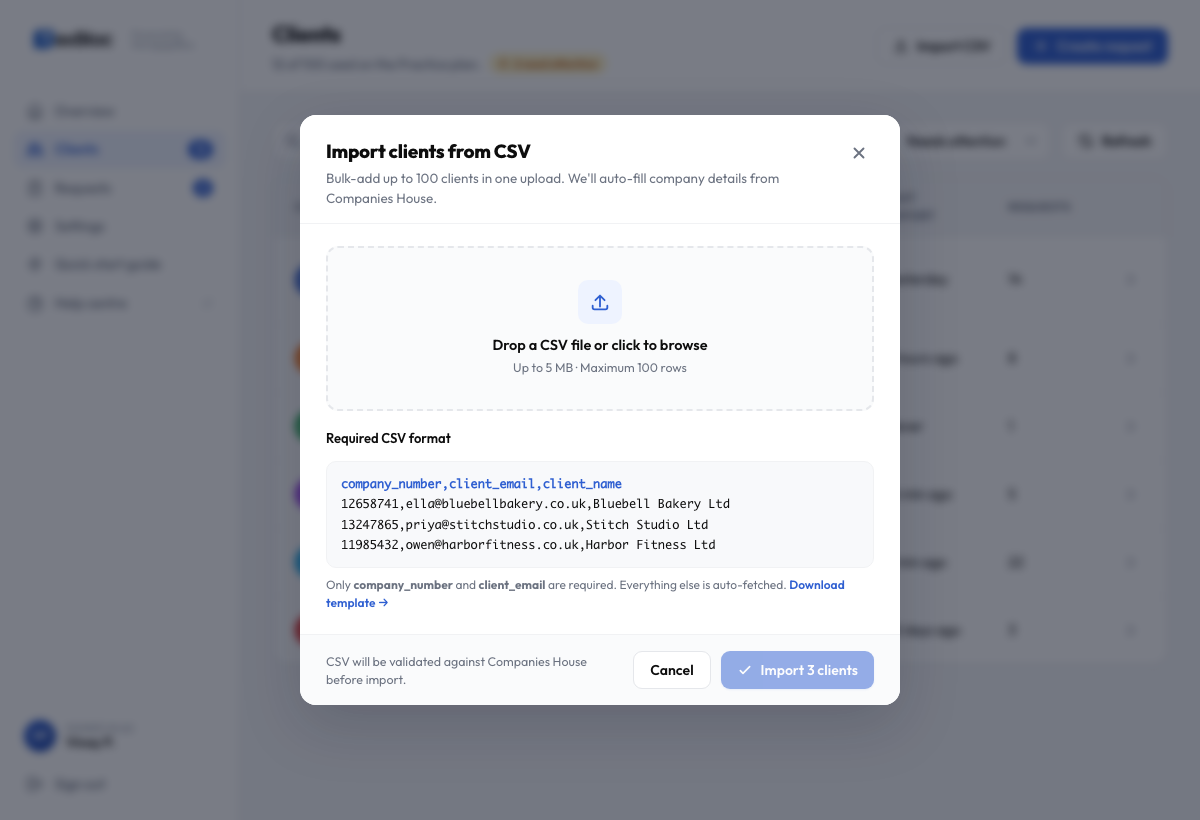
CSV format
Only two columns are required: company_number and client_email. Everything else (registered name, address, year-end, filing status) is auto-fetched from Companies House and validated before import.
Step by step
- Go to Clients in the left sidebar, then click Import CSV in the top-right.
- Drop your CSV into the upload zone (or click to browse). Maximum 5 MB, 100 rows.
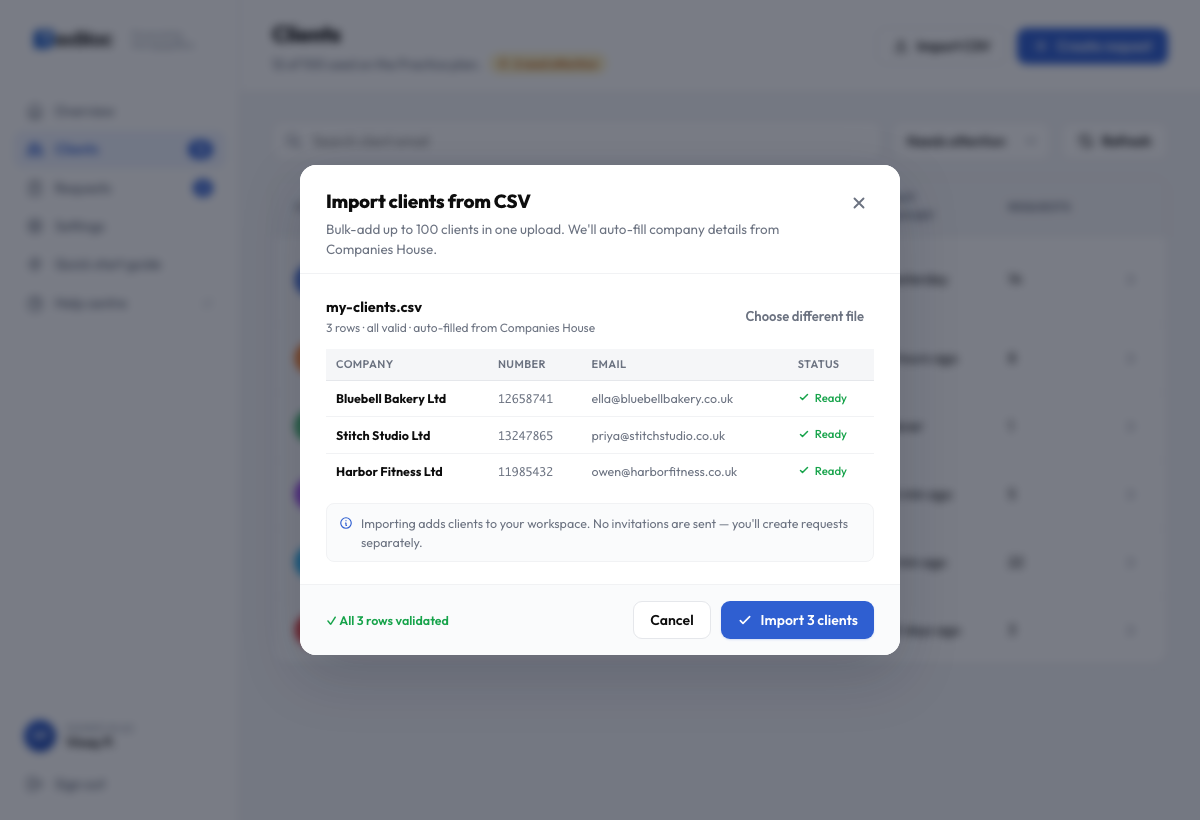
- Review the validation table. TaxBloc cross-checks every
company_numberagainst Companies House. Rows with bad numbers, dissolved companies, or missing emails are flagged before you commit. - Confirm import. Clients are added to your workspace, but no consent invitations are sent yet — that's a separate step (see Creating a consent request).
Entity types you can add
TaxBloc supports the full range of UK business entities. The Companies House lookup is available for the four registered types:
- Limited Company (Ltd) — the most common form.
- Limited Liability Partnership (LLP).
- Public Limited Company (PLC).
- Community Interest Company (CIC).
For unincorporated clients, you'll skip the Companies House step:
- Sole trader — no company number; year-end defaults to 5 April unless you set otherwise.
- Partnership (ordinary) — same as sole trader, but multi-partner.
Common questions
Can I edit a client's details after import? Yes. Open the client from the Clients page and edit fields inline. Companies House data refreshes automatically every 24 hours.
What if a company number is invalid? The row is flagged in the validation step with a red Not found badge. You can fix it in the CSV and re-upload, or skip that row.
Does the import send invitations? No — bulk import only adds clients to your workspace. To send consent requests, go to Creating a consent request or use the bulk-send action on the Clients page.